
The Editor
The editor is where you’ll spend most of your time. It’s a rich-text WYSIWYG editor built on TipTap (ProseMirror) that’s designed to feel like writing on real paper.
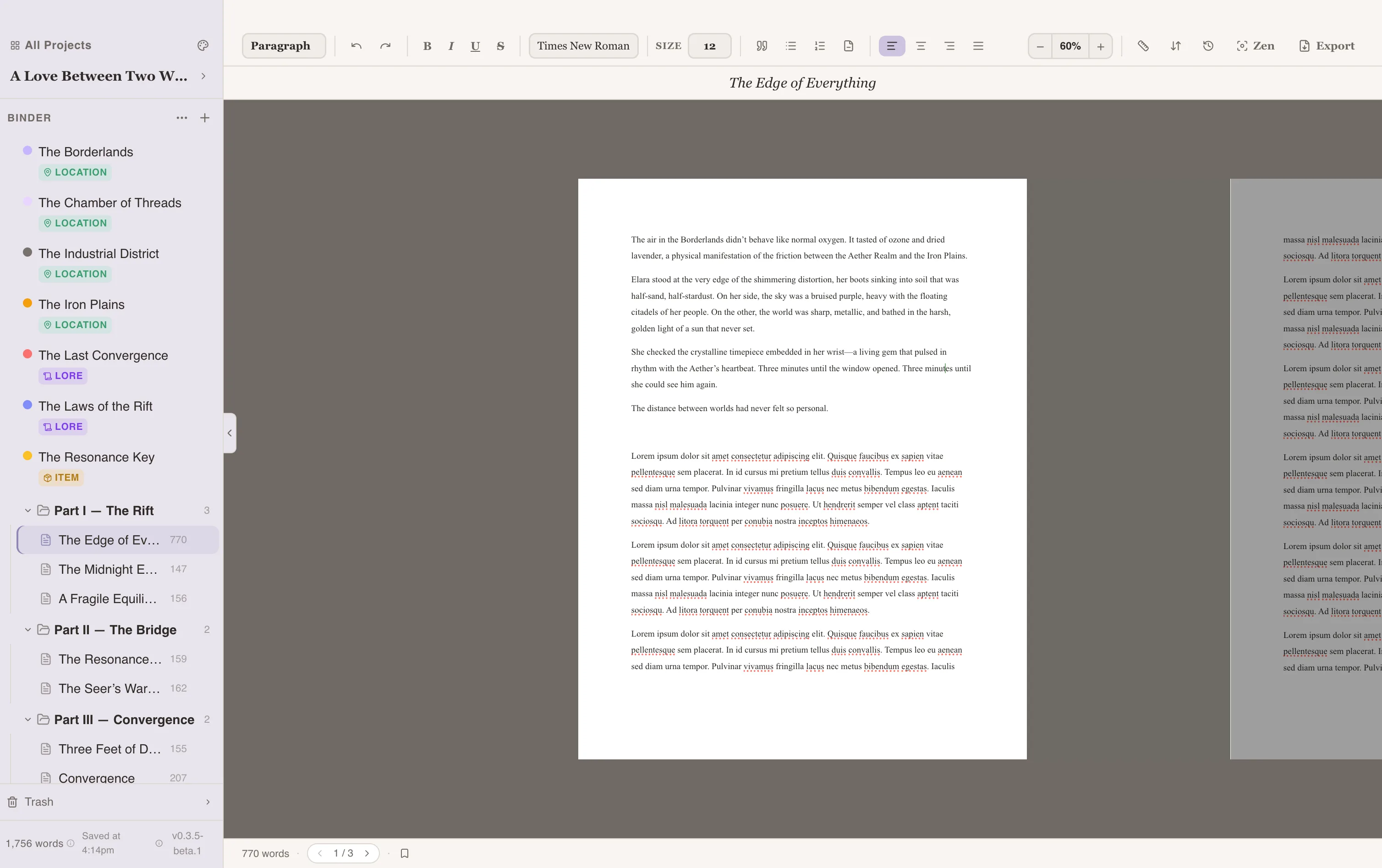
Paginated View
Section titled “Paginated View”Unlike most writing apps, Writefully So displays your text in a paginated layout that mimics printed pages. You’ll see page breaks as you write, giving you a clear sense of your manuscript’s length and flow.
Customizing Page Layout
Section titled “Customizing Page Layout”You can adjust the page dimensions and margins to match your preferred format:
- Page size: Letter (8.5” x 11”) by default, but configurable
- Margins: Top, bottom, left, and right margins are independently adjustable
- Access these settings from the Margins panel
Formatting
Section titled “Formatting”All formatting is available through the toolbar or keyboard shortcuts:
| Format | Shortcut |
|---|---|
| Bold | Cmd/Ctrl + B |
| Italic | Cmd/Ctrl + I |
| Underline | Cmd/Ctrl + U |
| Strikethrough | Cmd/Ctrl + Shift + X |
| Heading 1 | Cmd/Ctrl + Shift + 1 |
| Heading 2 | Cmd/Ctrl + Shift + 2 |
| Heading 3 | Cmd/Ctrl + Shift + 3 |
| Blockquote | Cmd/Ctrl + Shift + B |
| Bullet list | Cmd/Ctrl + Shift + 8 |
| Ordered list | Cmd/Ctrl + Shift + 7 |
| Horizontal rule | Cmd/Ctrl + Shift + - |
Word & Page Count
Section titled “Word & Page Count”The editor displays real-time statistics in the status bar at the bottom:
- Word count for the current chapter
- Session tracking — words written (+) and words edited (-) this session, with a progress bar toward your session goal
- Project total — total words across all chapters vs. your word goal
- Page navigation — current page number with previous/next buttons
These update as you type, so you always know where you stand.
Session Tracking
Section titled “Session Tracking”The status bar shows your session progress as +N written (green) and -N edited (muted). This means if you write 200 words and cut 150, you see both numbers instead of just “50” — editing work is tracked separately and never penalizes your progress bar.
Click the session goal number to change your target (default is 1,500 words). See Session Tracking for more details.
Dictionary & Thesaurus
Section titled “Dictionary & Thesaurus”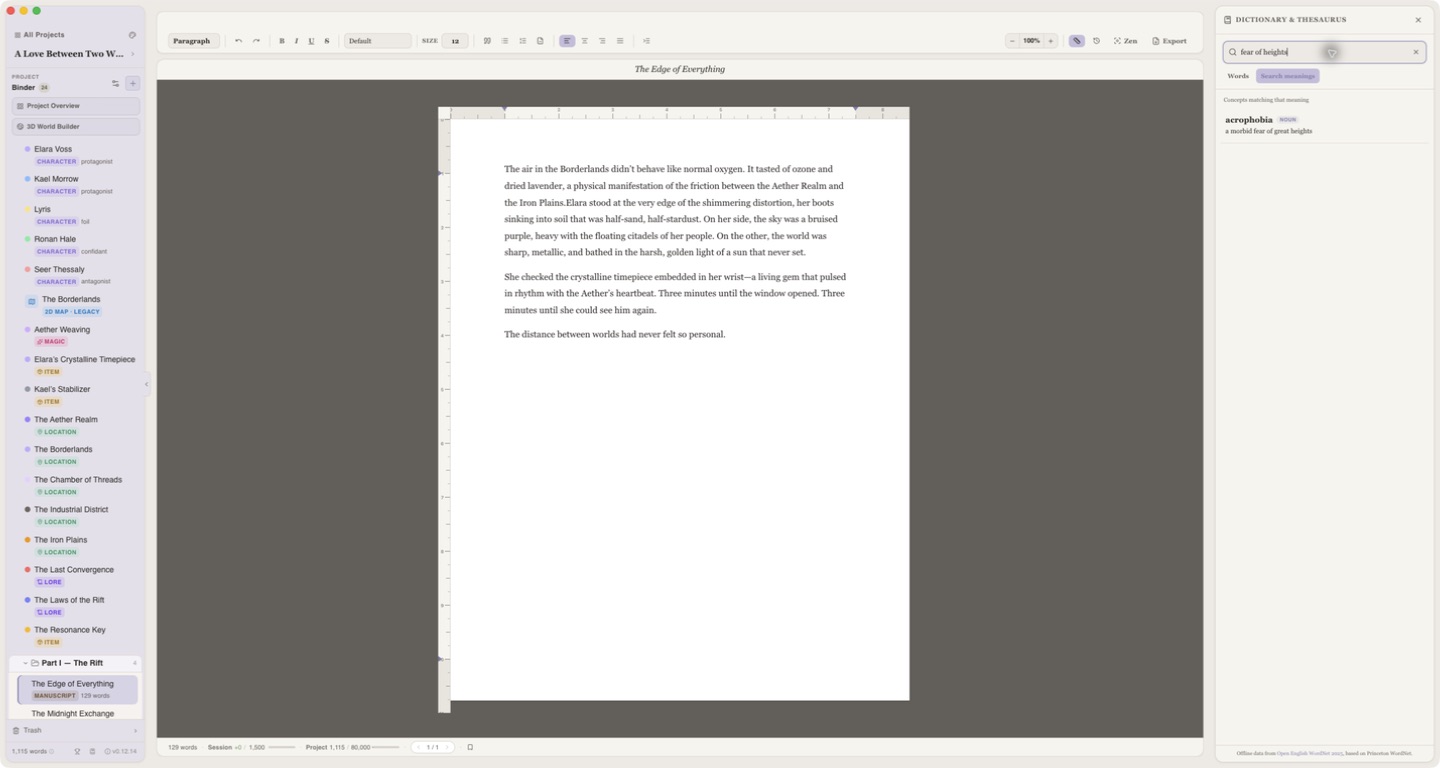
Open the Dictionary & Thesaurus from the book icon at the bottom of the binder, from Project Tools → Reference, or with Cmd/Ctrl + Shift + D.
- Words searches headwords and phrases as you type. It recognizes common inflected forms, so a search such as “children” can open “child.”
- Search meanings works in reverse: describe the concept you need, such as “fear of heights,” to find matching words such as “acrophobia.”
- Each entry can include definitions, usage examples, synonyms, and sense-specific antonyms. Spelling suggestions appear for close misses.
- Choose Use to replace the current selection or insert the result at the cursor. Recent searches stay available in the panel.
The dictionary is bundled with the app and works fully offline. Selecting a word or phrase in the manuscript still opens the smaller quick-lookup popup when you only need a definition.
Mentions
Section titled “Mentions”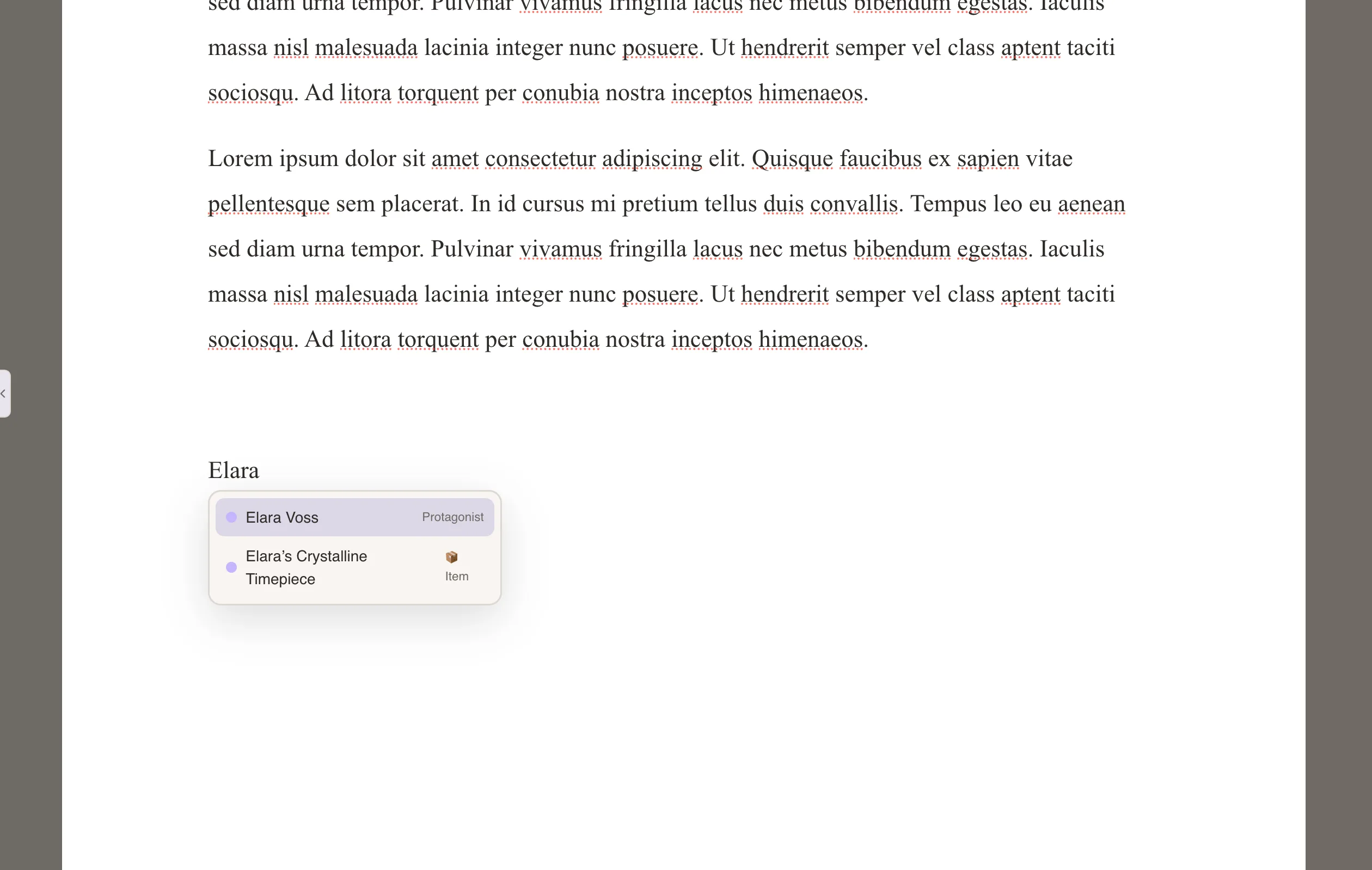
Type a character or codex entry name in your manuscript and it’s automatically detected and highlighted. Mentions are clickable — click one to jump to that character’s profile or codex entry. No special syntax needed.
Highlights
Section titled “Highlights”You can highlight passages in your manuscript to mark important sections for later review. Access highlights through the Highlights panel to see all marked passages at a glance.