
Export & Import
Export
Section titled “Export”When your manuscript is ready — or you just need to share a draft — Writefully So makes exporting easy.
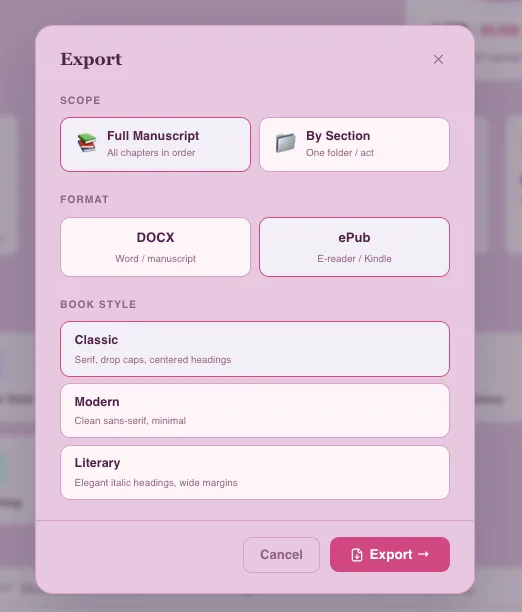
Supported Formats
Section titled “Supported Formats”The industry standard for manuscript submissions. Your formatting (bold, italic, headings, etc.) is preserved. Your author name is embedded in the document metadata. Perfect for sending to agents, editors, or beta readers.
Export a professionally formatted e-book ready for Kindle, Apple Books, Kobo, or any e-reader. Choose from three interior design themes:
- Classic — Serif font, drop caps on first paragraphs, centered uppercase chapter headings, indented paragraphs, ornamental
* * *scene breaks. The traditional novel look. - Modern — Clean sans-serif, underlined chapter headings, spaced paragraphs, minimal scene breaks. Contemporary and readable.
- Literary — Palatino serif, elegant italic centered headings, generous whitespace,
~ornamental breaks. For literary fiction and memoirs.
Your author/pen name is automatically embedded in the ePub metadata (dc:creator), so e-readers display it correctly.
Individual chapters and character profiles can be exported as PDF.
How to Export
Section titled “How to Export”- Open the Export dialog from the sidebar tools menu (gear icon) or Project Overview
- Choose your scope — full manuscript or a single section/folder
- Choose your format — DOCX or ePub
- If ePub, choose your book style — Classic, Modern, or Literary
- Click Export and choose where to save
Author / Pen Name
Section titled “Author / Pen Name”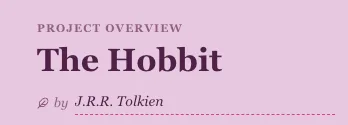
Set your author name on the Project Overview page (the quill icon + “by” field below your project title). This name is:
- Displayed on your Dashboard project card
- Embedded in ePub metadata (shows on e-readers)
- Embedded in DOCX document properties
You can use a different pen name for each project.
Import
Section titled “Import”Supported Formats
Section titled “Supported Formats”- Word (.docx) — Converted to HTML preserving formatting
- Markdown (.md) — Parsed with full Markdown support
- Plain text (.txt) — Converted to paragraphs
Auto-Chapter Splitting
Section titled “Auto-Chapter Splitting”When you import a document, Writefully So automatically splits it into chapters at heading boundaries:
- It looks for H1 headings first
- If no H1s are found, it falls back to H2 headings (common in Scrivener exports)
- If no headings are found, the entire document becomes one chapter
Content before the first heading is prepended to the first chapter.
How to Import
Section titled “How to Import”- Open the sidebar tools menu (gear icon) and click Import File(s)…
- Select one or more files
- Chapters are created automatically and added to your current folder
You can import multiple files at once — each file is processed independently.
- Export to DOCX for professional submissions — it’s what agents and publishers expect
- Use ePub export with the Classic theme for the most traditional book feel
- Import regularly from other tools — the H2 fallback makes Scrivener migration seamless
- Set your pen name before exporting so it’s embedded in every file