
Backups
Writefully So protects your work with three layers of backup: automatic database snapshots inside each project, optional scheduled ZIP backups to another folder, and portable encrypted project exports you can safely store off-site.
Local Backups
Section titled “Local Backups”Every time you open a project, Writefully So automatically creates a local backup of your database. These are stored inside your project folder at 06_Backups/ and the last 5 are kept.
You don’t need to do anything — this happens silently in the background.
To see your backup status, check the Data & Backup section at the bottom of the project overview. You’ll see when the last backup was created and how many exist. Click Open Project Folder to see the files directly.
External Backup
Section titled “External Backup”For extra safety, you can back up all your projects to an external folder — like a Google Drive, Dropbox, iCloud, or USB drive folder. This creates compressed, unencrypted .zip files of each project, organized into subfolders by project name.
Setting Up
Section titled “Setting Up”- Go to the main dashboard (the screen that shows all your projects)
- At the bottom, you’ll see a backup bar — click Choose Backup Folder
- Pick any folder on your computer
That’s it. Once configured, Writefully So will automatically back up all your projects to that folder once a day, keeping the last 5 backups per project.
Manual Backup
Section titled “Manual Backup”Click Back Up Now in the dashboard backup bar to immediately create a fresh backup of every project. This is useful before a major editing session or when you want peace of mind.
Managing Your Backup
Section titled “Managing Your Backup”From the dashboard backup bar, you can:
- Open backups — opens the backup folder in Finder/Explorer so you can see your zip files
- Change folder — switch to a different backup destination
- Remove — stop external backups (your existing backup files are not deleted)
What Gets Backed Up
Section titled “What Gets Backed Up”Each backup zip contains:
- Your complete project database (chapters, characters, codex entries, maps, timelines, settings)
- All images (character portraits, mood boards, map backgrounds)
- Everything except the local
06_Backups/folder (to avoid nesting backups inside backups)
Encrypted Project Backup
Section titled “Encrypted Project Backup”Starting in v0.12.3, you can export a complete project as an encrypted .wfbackup file. This is the best option when you want to keep an off-site copy in cloud storage while preventing anyone without your recovery secret from reading the project.
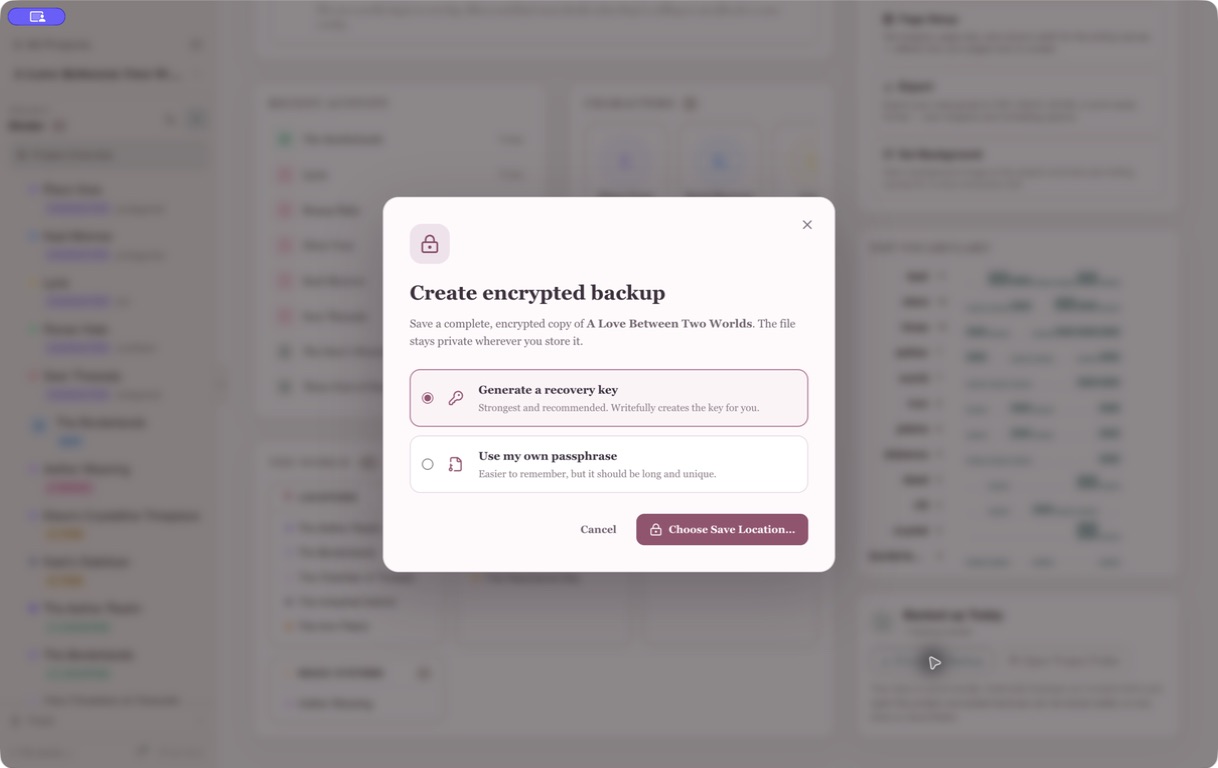
Encrypted backups use AES-256-GCM authenticated encryption. You can protect one with:
- A generated recovery key — strongest and recommended. Writefully So creates a key for you to copy or save as a text file.
- Your own passphrase — easier to remember, but it must be at least 12 characters and should be long and unique.
Create an Encrypted Backup
Section titled “Create an Encrypted Backup”- Open the project.
- Scroll to Data & Backup on the Project Overview.
- Click Encrypted Backup.
- Choose a generated recovery key or your own passphrase.
- Choose where to save the
.wfbackupfile. - If you generated a recovery key, save it somewhere separate from the backup.
The encrypted export includes the project database and project files, but omits the nested 06_Backups/ history.
Restore an Encrypted Backup
Section titled “Restore an Encrypted Backup”- Go to the main project dashboard.
- Click Restore Encrypted in the backup bar.
- Choose the
.wfbackupfile. - Enter its recovery key or passphrase.
- Click Restore Project.
Writefully So decrypts and verifies the backup, then restores it as a separate project. An existing project is never overwritten.
Cloud Storage Tips
Section titled “Cloud Storage Tips”The backup folder can be any folder on your computer — including one that syncs to the cloud:
- Google Drive: Pick a folder inside
~/Google Drive/ - Dropbox: Pick a folder inside
~/Dropbox/ - iCloud: Pick a folder inside
~/Library/Mobile Documents/com~apple~CloudDocs/ - OneDrive: Pick a folder inside
~/OneDrive/
Writefully So doesn’t connect to any cloud service directly. It writes backup files to a local folder — if that folder happens to sync, your backups end up in the cloud automatically. No Writefully account or cloud API key is required.
Regular scheduled .zip backups are not encrypted. For confidential off-site storage, create an encrypted .wfbackup file instead.
Restoring From a Backup
Section titled “Restoring From a Backup”To restore a project from an external backup:
- Find the
.zipfile in your backup folder - Unzip it — you’ll get a folder with a
data.dbfile and any project images - Copy the contents into your project folder at
~/Documents/Writefully-So/<ProjectName>/, replacing the existingdata.db - Reopen the project in Writefully So
For local backups (the .db files in 06_Backups/), rename the backup file to data.db and replace the existing one.