Getting Started with Writefully So: A Visual Walkthrough
You’ve downloaded Writefully So. Now what? This walkthrough takes you from a blank screen to a fully organized novel project in about ten minutes.
Step 1: Create your project
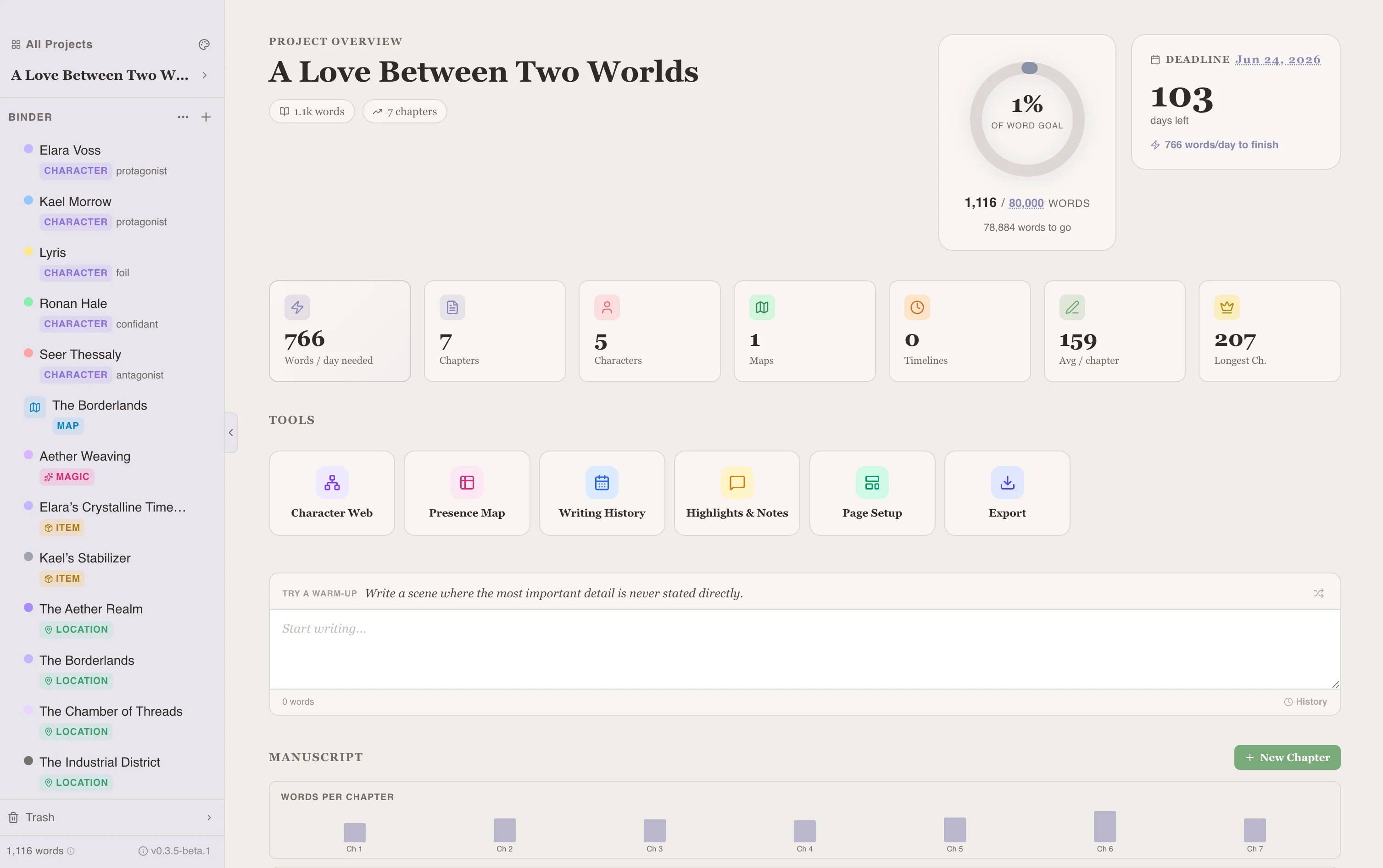
When you first open the app, you’ll see the project dashboard — all your novels in one place.
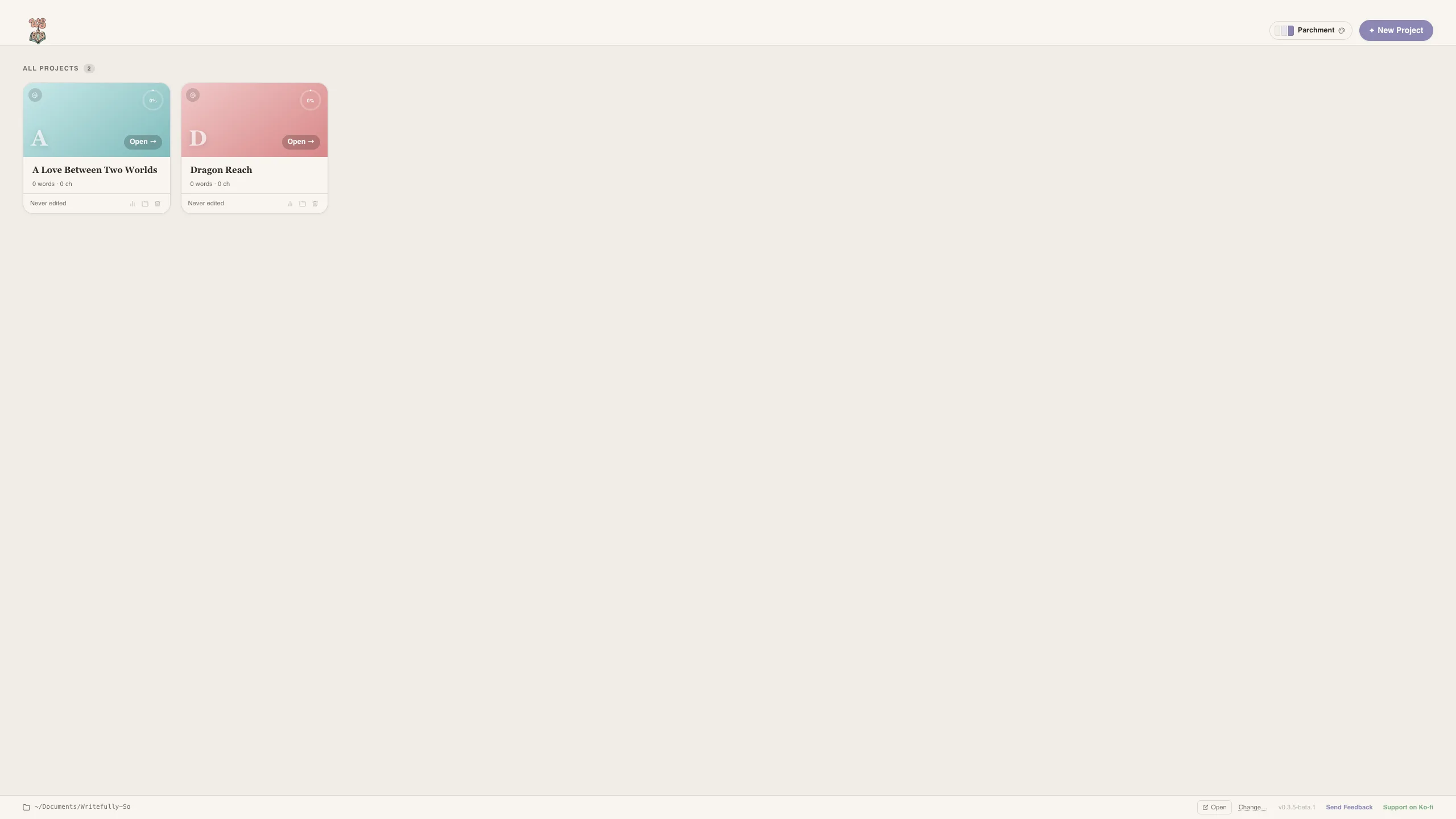
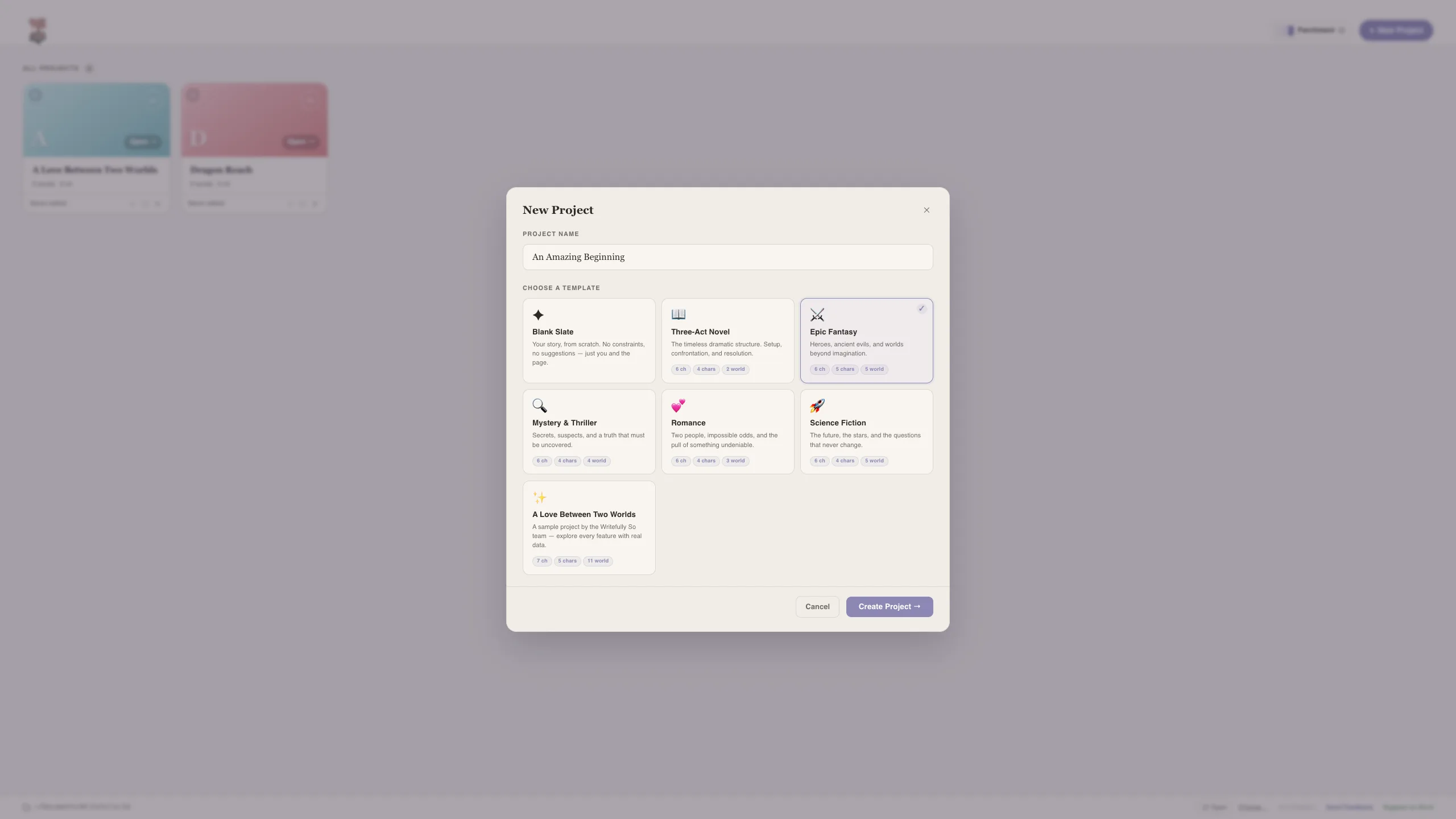
Click New Project, give it a name, and choose a genre template if you’d like a head start — Three-Act Novel, Epic Fantasy, Mystery, Romance, or Sci-Fi — each pre-loaded with chapter structures, sample characters, and codex entries.
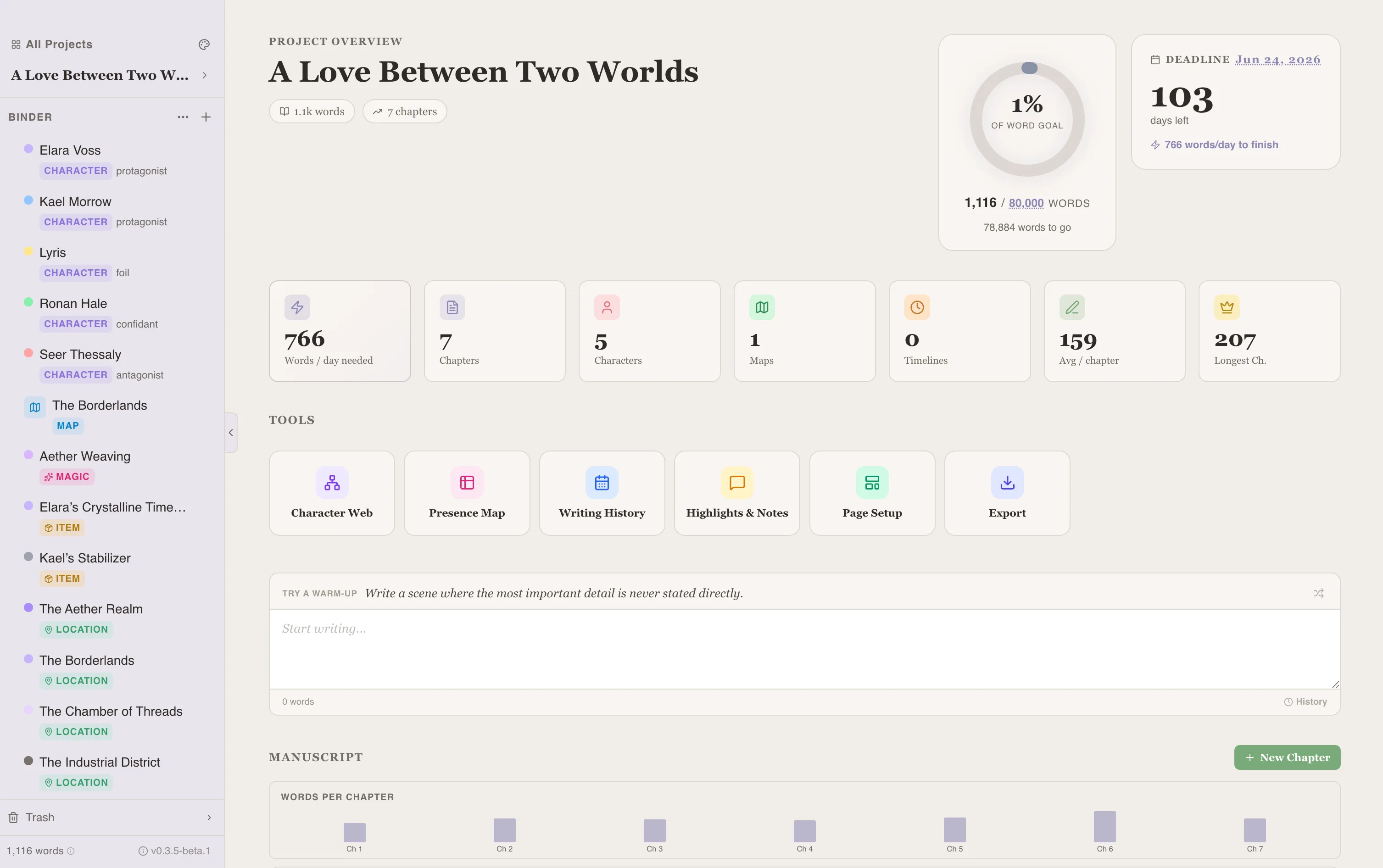
Once your project opens, the interface is split into two parts: the sidebar on the left (where all your content lives) and the working area on the right (where you write and edit).
Step 2: Write your first chapter
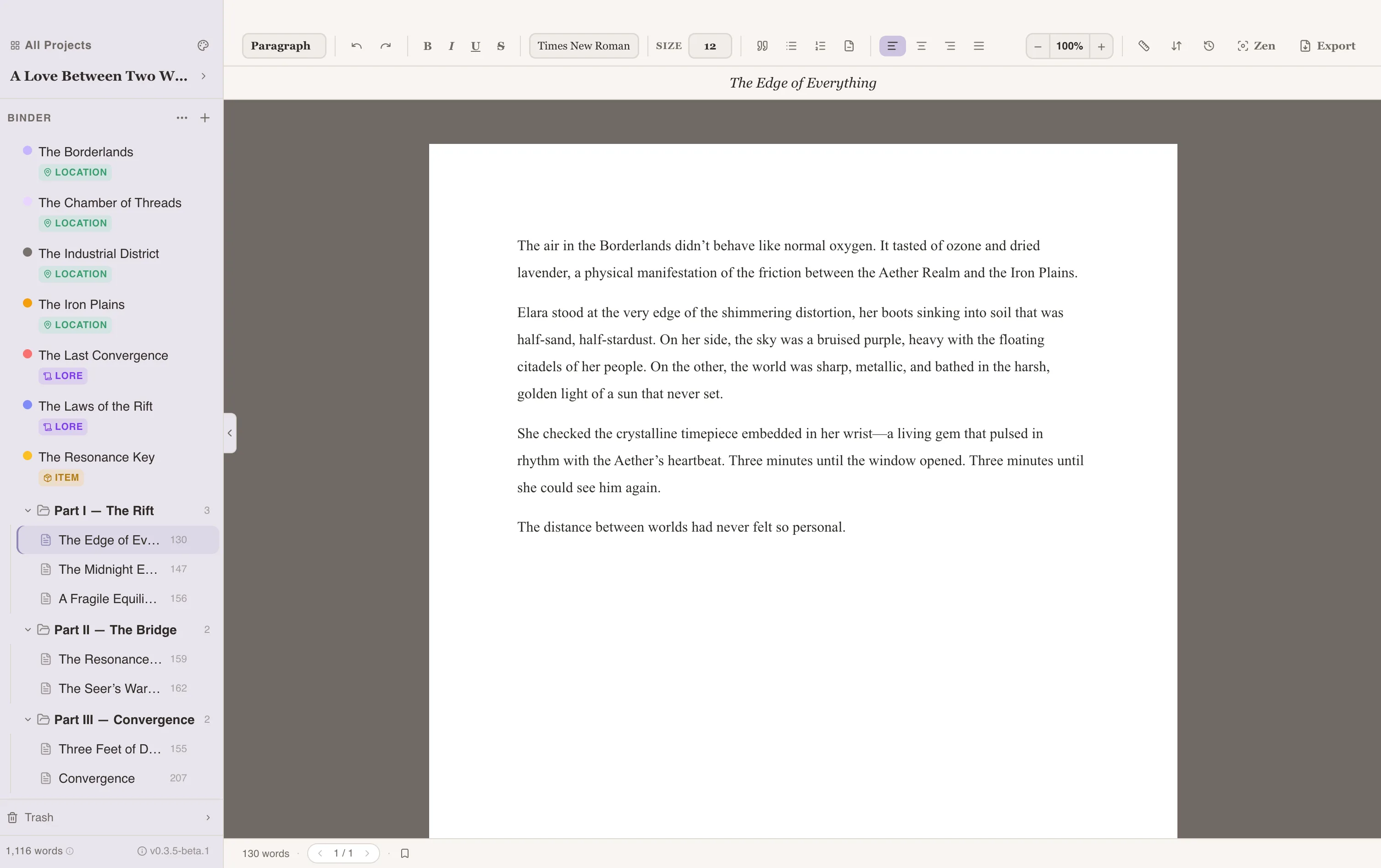
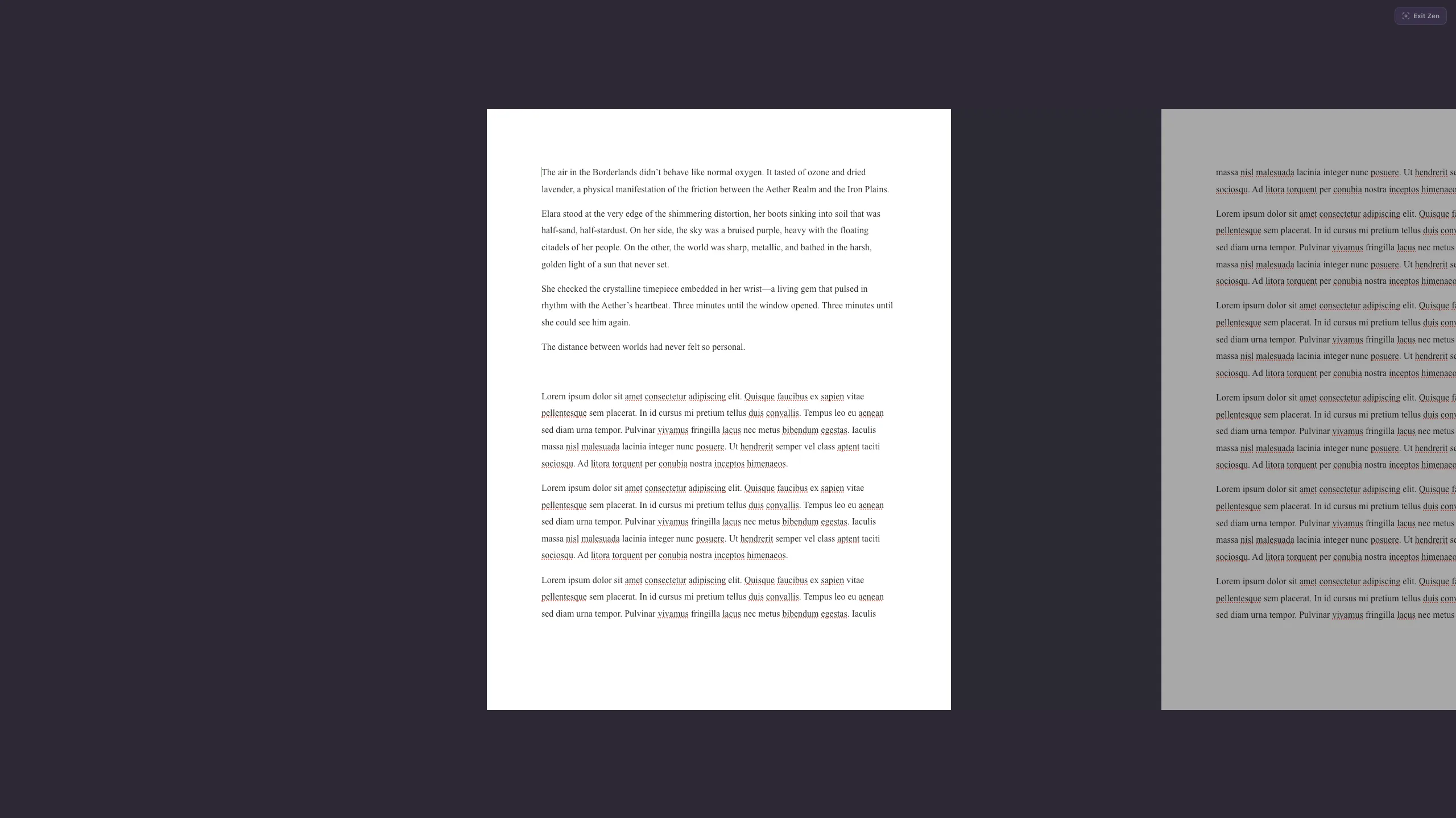
Click the + button in the Chapters section to create your first chapter. The editor opens on the right — it’s a rich-text editor with a paginated layout that feels like writing on real paper.
A few things to know right away:
- Formatting works through the toolbar or keyboard shortcuts —
Cmd+Bfor bold,Cmd+Ifor italic,Cmd+Shift+1for headings - Word count and page count update in real-time at the bottom of the editor
- Page layout is customizable — change the page size, margins, and fonts to match your preferred manuscript format
- Zen Mode strips away the interface for distraction-free writing when you need to focus
Step 3: Organize with folders
As your manuscript grows, you’ll want structure. Create folders for parts or acts, then drag chapters into them. The order in the sidebar is the order of your manuscript — what you see is what you export.

Each chapter can have a synopsis (a short summary for your reference) and labels (color-coded status tags like Draft, Revised, or Final).
Step 4: Build your characters
Head to the Characters section and click + New Character. This is where Writefully So really stands out. Instead of a blank text box, you get a structured profile built for storytelling:
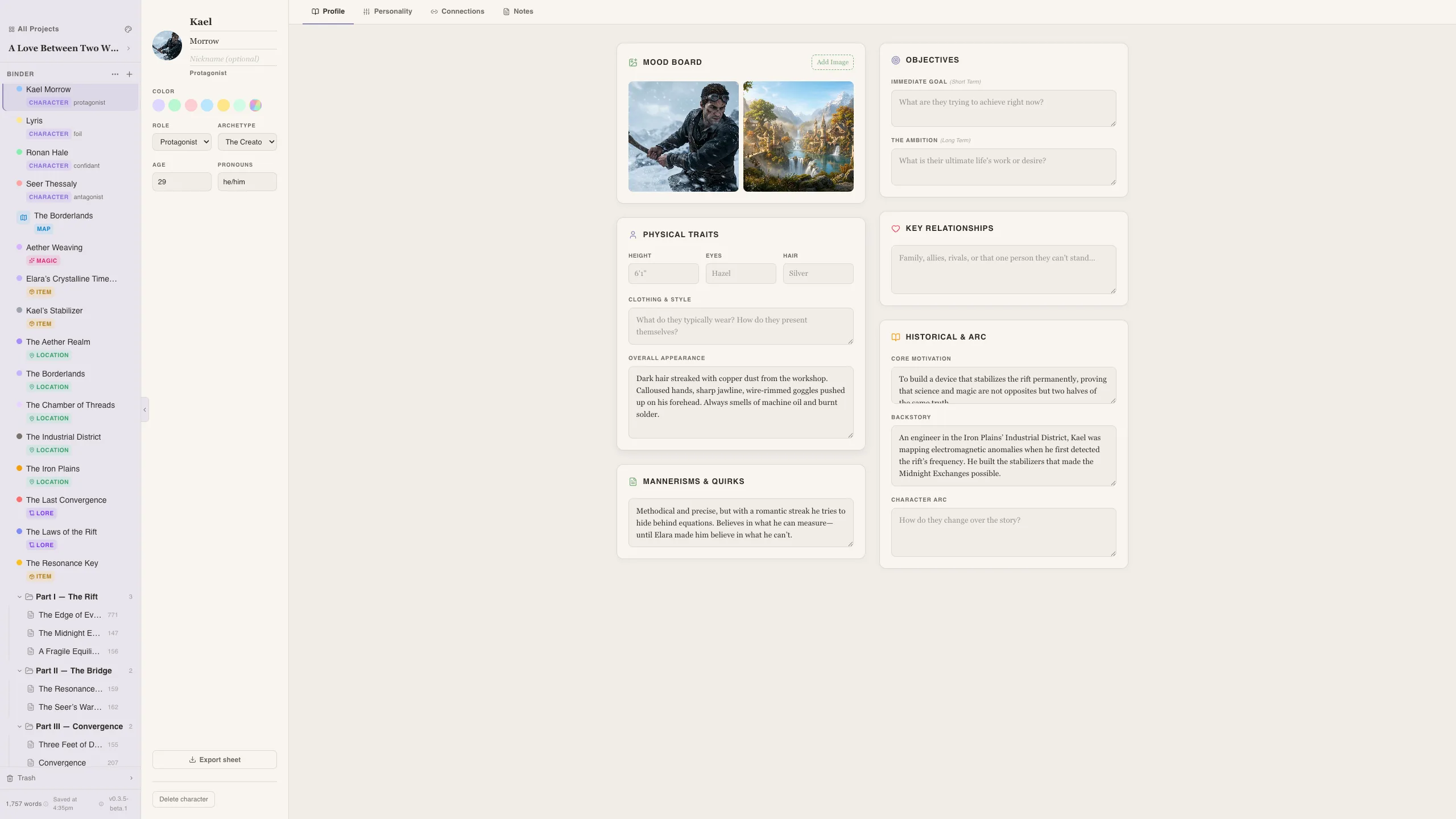
Fill in what you know and leave the rest for later. The key fields to start with:
- Desire — what your character wants
- Fear — what they’re afraid of
- Flaw — what holds them back
- Strength — what makes them compelling
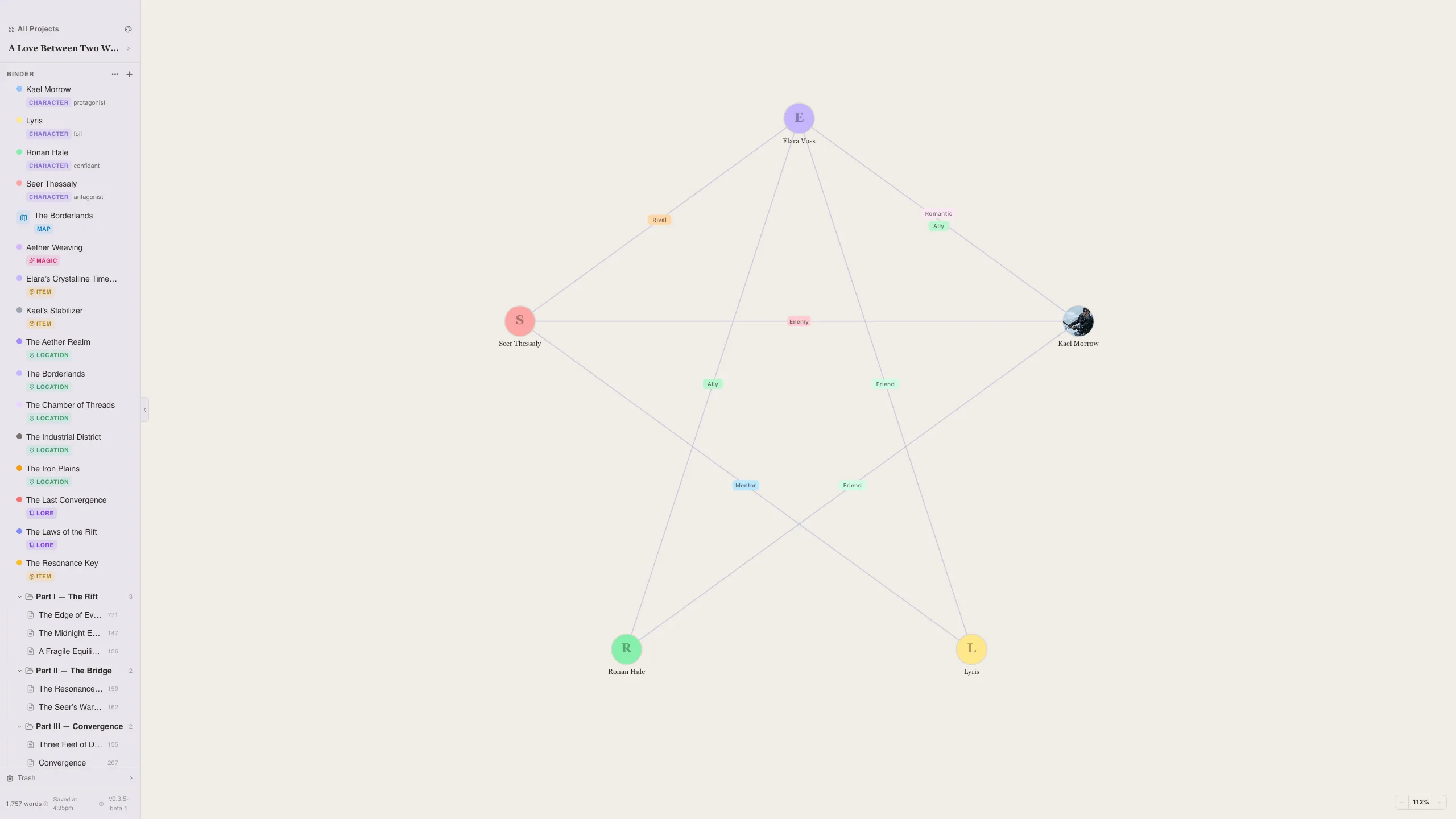
You can also add portraits, mood board images, and personality trait sliders. As you add relationships between characters, they’ll show up in the Character Web — an interactive graph that visualizes how your cast connects.
Step 5: Build your world
The Codex is your world-building encyclopedia. Create entries for:
- Locations — cities, taverns, forests, planets
- Lore — history, mythology, culture, religion
- Items — weapons, heirlooms, artifacts
- Magic — systems, powers, rules, limitations
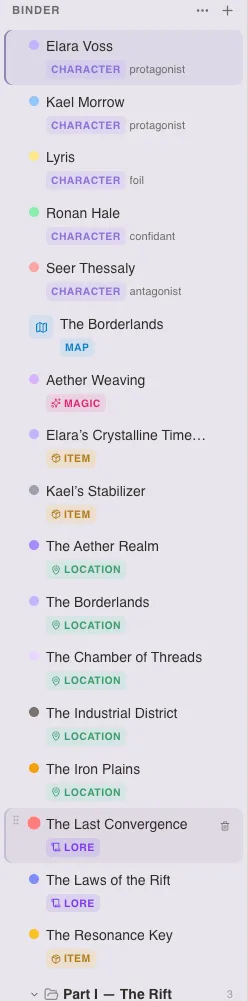
Each entry gets rich-text notes, images, custom fields, and tags. The best part: when you type a character or codex entry name in your manuscript, it’s automatically detected and becomes a clickable link. No special syntax — just write naturally.
Step 6: Map your world and timeline
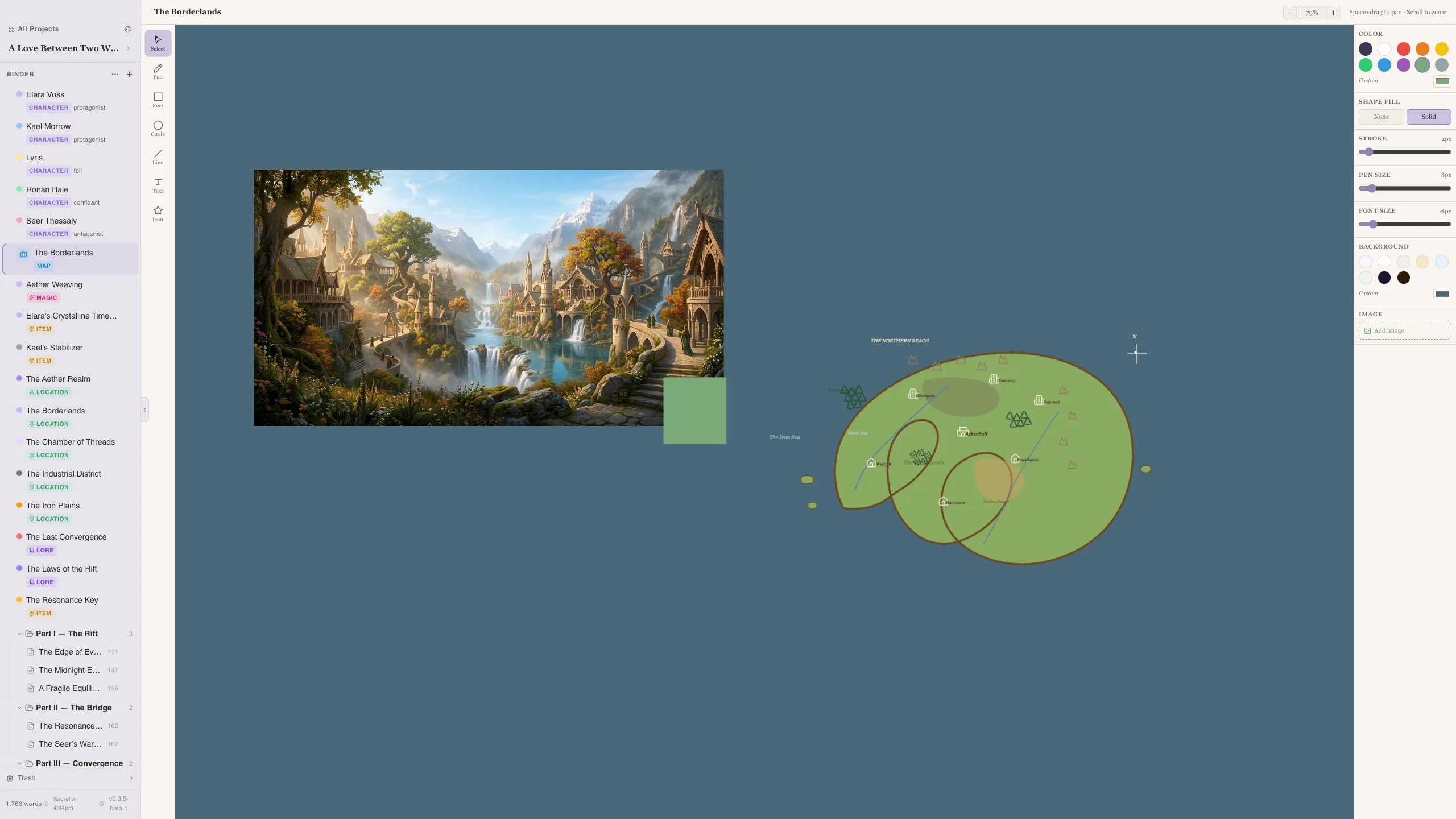
If your story has a world worth mapping, open the 3D World Builder to shape land and ocean tiles, sculpt terrain, paint ground types, and place landmarks like castles, fortresses, villages, mountains, rivers, labels, and story pins.
For a flat reference map, use the Maps section. The legacy 2D canvas editor lets you upload a background image, draw on top of it, add shapes and text, and place icons from a built-in library.
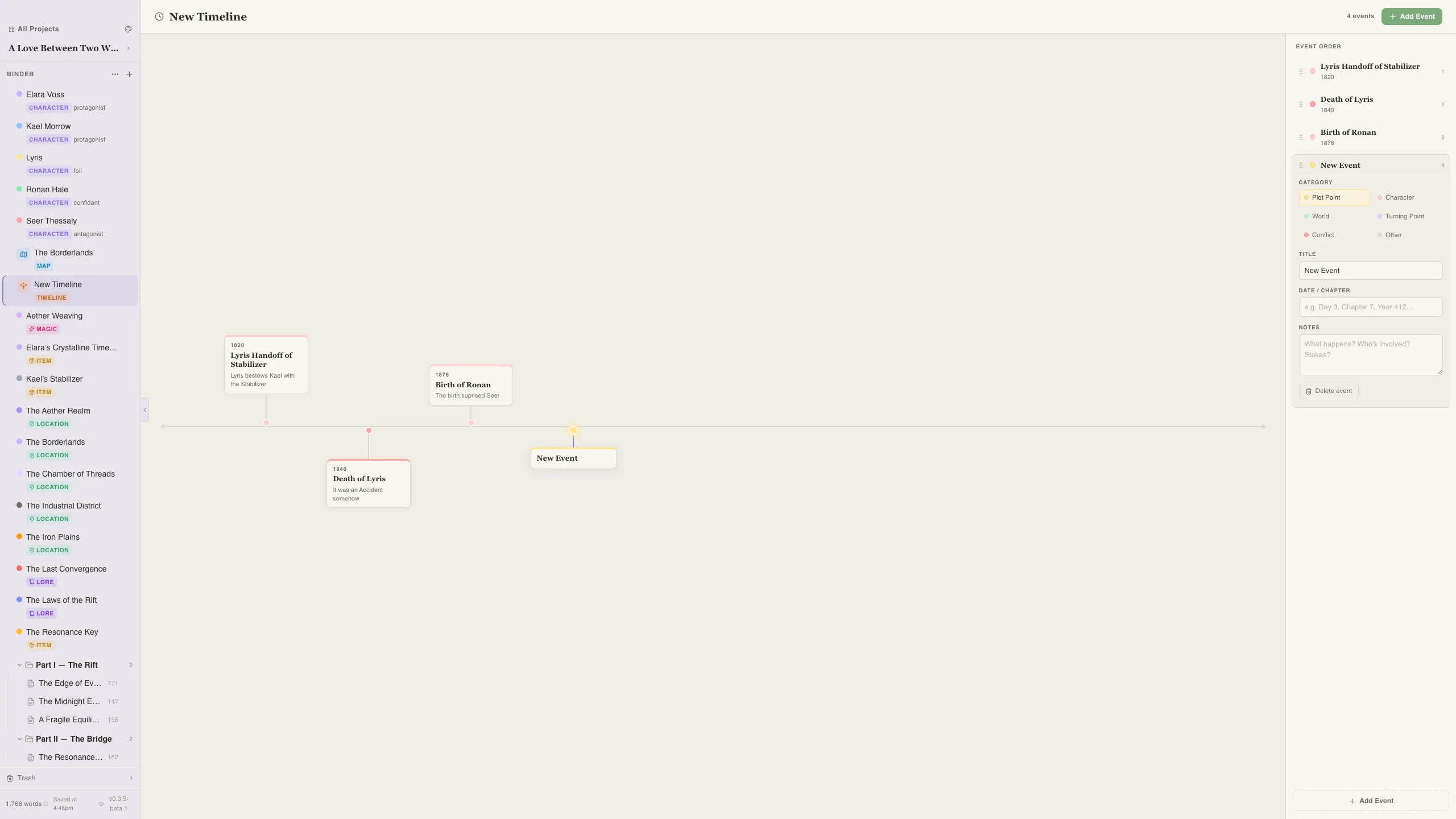
For chronology, create a Timeline and add events in categories — Plot, Character, World, or Turning Point. Each category gets its own color, so you can see at a glance how different story threads weave together.
Step 7: Protect your work
Your project auto-saves constantly, but it’s worth knowing about the built-in safety nets:
- Snapshots — take a manual snapshot before a big edit, or let the app auto-snapshot every ten minutes
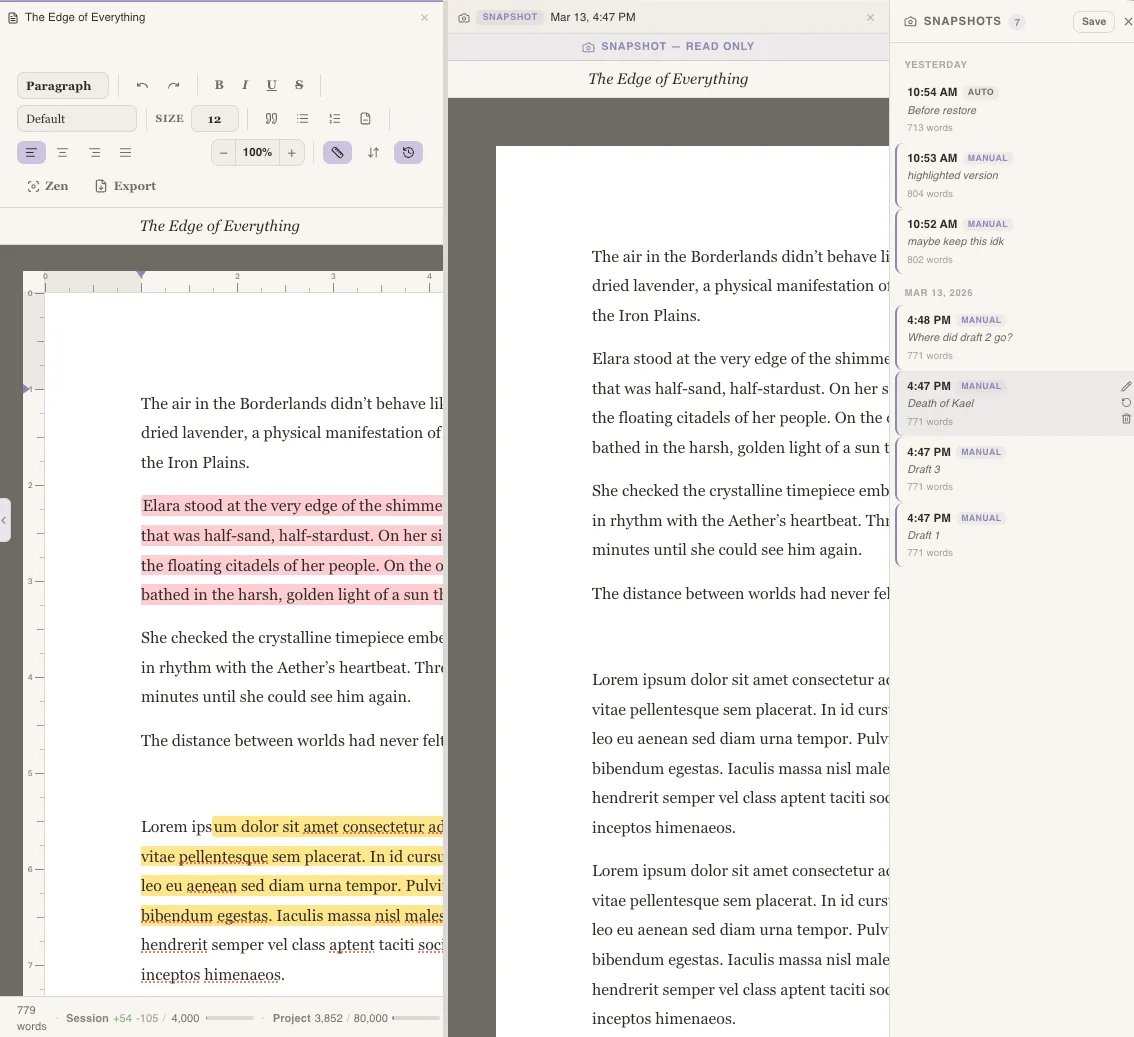
- Graveyard — deleted chapters, characters, and codex entries aren’t gone forever. They move to a recoverable graveyard.
- Backups — the app creates timestamped database backups automatically
For extra safety, back up your ~/Documents/Writefully-So/ folder to an external drive or cloud sync service. Your data, your terms.
Step 8: Make it yours
Finally, pick a theme. Writefully So ships with five:
- Parchment — warm cream, cozy and paper-like (default)
- Midnight — dark mode with cool undertones
- Pastel Eclipse — lavender pink and baby blue
- Writefully — salmon and sage
- Classic — clean white and blue
Open the theme selector from the header and click to switch instantly.
Start writing
That’s it — you’ve got a project with chapters, characters, world-building, maps, timelines, and a theme you love. The rest is up to you.
Writefully So is free to download. No account, no subscription, no cloud. Just open it and write.
This post was drafted with AI assistance and reviewed by our team. We use AI for product communication — never for creative writing, and never to train on yours.
Back to all posts